A slow Shopify store loses shoppers before they see a single product. The good news is that most speed problems come from a short list of causes: too many apps, heavy images, extra scripts, and theme code that was added and never cleaned up. This guide shows how to measure your store's speed, what to fix first, and a checklist you can work through in an afternoon.
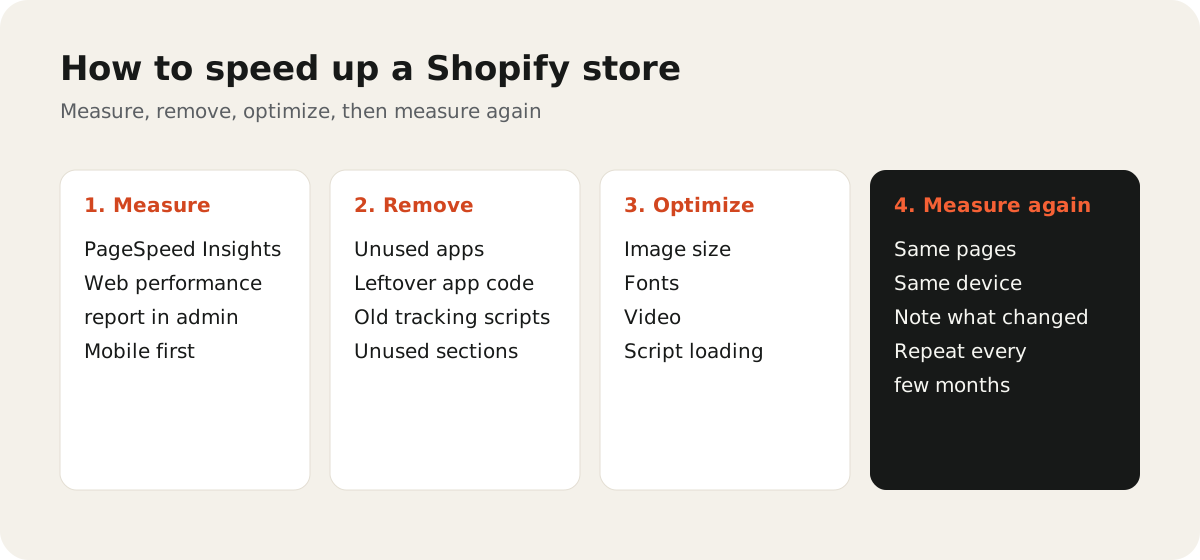
How to measure your Shopify site speed
Start with numbers, not a feeling. Two free tools cover most needs:
- Web performance in Shopify admin. Go to Online Store > Themes and open the web performance report. It shows Core Web Vitals from real visitors to your store, when Shopify has enough data.
- Google PageSpeed Insights. Paste your home page, a collection page, and a product page into PageSpeed Insights. Test each one, because they load different things.
Focus on the three Core Web Vitals Google uses:
| Metric | What it measures | What usually hurts it |
|---|---|---|
| LCP (Largest Contentful Paint) | How fast the main image or text appears | Large hero images, slow fonts |
| INP (Interaction to Next Paint) | How fast the page reacts to taps and clicks | Heavy JavaScript from apps |
| CLS (Cumulative Layout Shift) | How much the page jumps while loading | Banners, pop-ups, images without set sizes |
Takeaway: test on mobile first. Most shoppers browse on phones, and mobile scores are usually the weaker ones.
Remove apps you don't need
Apps are the most common reason a Shopify store gets slower over time. Many apps load scripts on every page, even pages where the app does nothing.
- List every installed app and what it does.
- Remove apps you no longer use, or that duplicate a feature Shopify now has built in.
- After you uninstall an app, check your theme for leftover code. Some older apps leave snippets behind.
If two apps do similar jobs, such as two review or pop-up apps, keep one.
Fix your images
Images are often the heaviest part of a page. Shopify serves images in modern formats and resizes them for each screen when your theme uses its image tools, but you still control what you upload.
- Upload images at a sensible size. A product photo rarely needs to be wider than about 2,000 pixels.
- Compress large banner and lifestyle shots before upload.
- Avoid a slideshow in the first screen. One strong image loads faster than five.
- Make sure images below the first screen load lazily, which most modern themes do by default.
Clean up theme code
Every theme change adds a little weight. Over the years, a store can collect unused sections, old tracking code, and custom scripts that no one remembers adding.
- Use a current Online Store 2.0 theme. Shopify's own themes are built with speed in mind.
- Remove sections and snippets you don't use.
- Ask a developer to find scripts that block the page from showing, and make them load later.
- Test a fresh copy of your theme against your live theme. If the fresh copy is much faster, the difference is in your customizations.
Watch fonts and video
Fonts and video are easy to overlook.
- Fonts: use one or two font families, with only the weights you need. Fonts from Shopify's font library load efficiently. Custom fonts from outside services can slow the first view.
- Video: a background video in the first screen is heavy. If you need one, use a short, compressed clip, show a still image first, and avoid autoplay on mobile where you can.
Control third-party scripts
Tracking pixels, chat widgets, heat maps, and ad tags all add JavaScript. Each one may be small, but together they can make the page slow to react.
- Use Shopify's customer events and official sales channel apps for pixels where possible, instead of pasting code into the theme.
- Remove tracking for tools you no longer check.
- Load chat widgets only where shoppers actually ask questions.
Takeaway: for every script, ask who uses the data it collects. If the answer is no one, remove it.
A Shopify speed optimization checklist
Work through this list, then test again with the same pages you tested at the start:
- Record mobile scores for home, collection, and product pages
- Uninstall unused apps and remove their leftover code
- Resize and compress large images, especially banners
- Replace a first-screen slideshow with one image
- Remove unused theme sections and old custom scripts
- Limit fonts to one or two families
- Replace or compress background video
- Remove tracking and widgets no one uses
- Test again and note what changed
Speed work is never fully done. Check your scores every few months, and every time you add a new app.
If you'd like a developer to find and fix what is slowing your store, see our Shopify development service. A faster store also helps your conversion rate, and if you are still choosing apps, read how much a Shopify store costs to keep app fees in check.